README
WhatCable
What can this USB-C cable actually do?
A small macOS menu bar app that tells you, in plain English, what each USB-C cable plugged into your Mac can actually do, and why your Mac might be charging slowly.
USB-C hides a lot under one connector. Anything from a USB 2.0 charge-only cable to a 240W / 40 Gbps Thunderbolt 4 cable, all looking identical in your drawer. macOS already exposes the relevant info via IOKit; WhatCable surfaces it as a friendly menu bar popover.



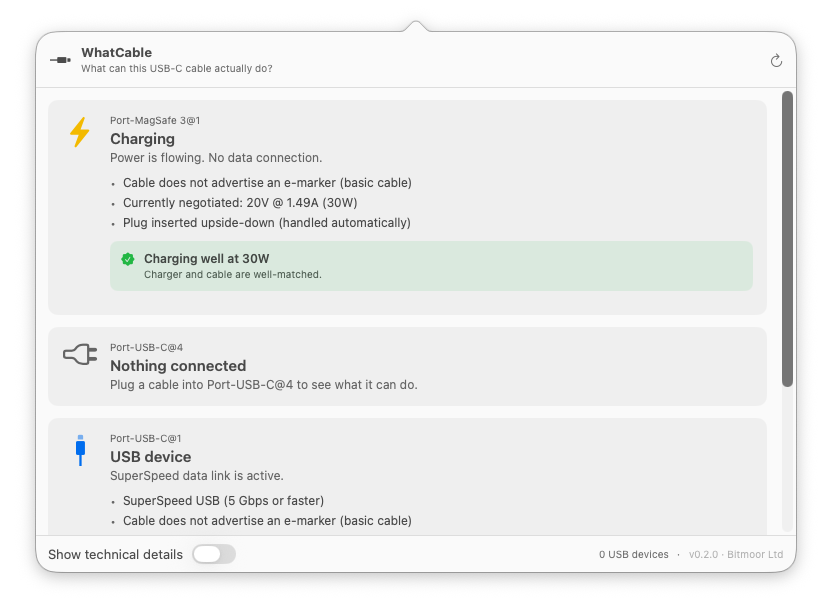
What it shows
Per port, in plain English:
- At-a-glance headline: Thunderbolt / USB4, USB device, Charging only, Slow USB / charge-only cable, Nothing connected
- Charging diagnostic: when something's plugged in, a banner identifies the bottleneck:
- "Cable is limiting charging speed" (cable rated below the charger)
- "Charging at 30W (charger can do up to 96W)" (Mac is asking for less, e.g. battery near full)
- "Charging well at 96W" (everything matches)
- Cable e-marker info: the cable's actual speed (USB 2.0, 5 / 10 / 20 / 40 / 80 Gbps), current rating (3 A / 5 A up to 60W / 100W / 240W), and the chip's vendor
- Charger PDO list: every voltage profile the charger advertises (5V / 9V / 12V / 15V / 20V…) with the currently negotiated profile highlighted in real time
- Connected device identity: vendor name and product type, decoded from the PD Discover Identity response
- Attached USB devices: storage, hubs, and peripherals listed under the physical port they're plugged into, with their negotiated speed
- Active transports: USB 2 / USB 3 / Thunderbolt / DisplayPort
- ⌥-click the menu bar icon (or flip the toggle in Settings) to reveal the underlying IOKit properties for engineers